Combine filter elements
Combine filter elements is a filtering mechanism that
-
follows standard filtering rules where categories are "AND-ed" AND values within categories are "OR-ed"
-
allows combination of filters with custom search criteria
-
applies "OR" logic to device event filters, AND
-
enables filtering by historical events within a time range.
Filter combination behavior
Filtering events generally follows the standard filtering rules in Security Cloud Control: The filtering categories are "AND-ed" AND the values within the categories are "OR-ed." You can also combine the filter with your own search criteria. In the case of event filters; however, the device event filters are also "OR-ed."
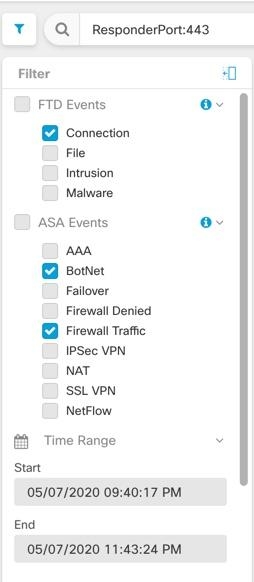
With this filter in use, Security Cloud Control would display Firewall Threat Defense device connection events OR ASA BotNet OR Firewall Traffic events, AND those events that occurred between the two times in the time range, AND those events that also contain the ResponderPort 443. You can filter by historical events within a time range. The live events page always displays the most recent events.
Search for specific attribute: value pairs
You can search for live OR historical events by entering an event attribute AND a value in the search field. The easiest way to do this is to click the attribute in the Event Logging table that you want to search for, AND Security Cloud Control enters it in the Search field. The events you can click on will be blue when you roll over them.
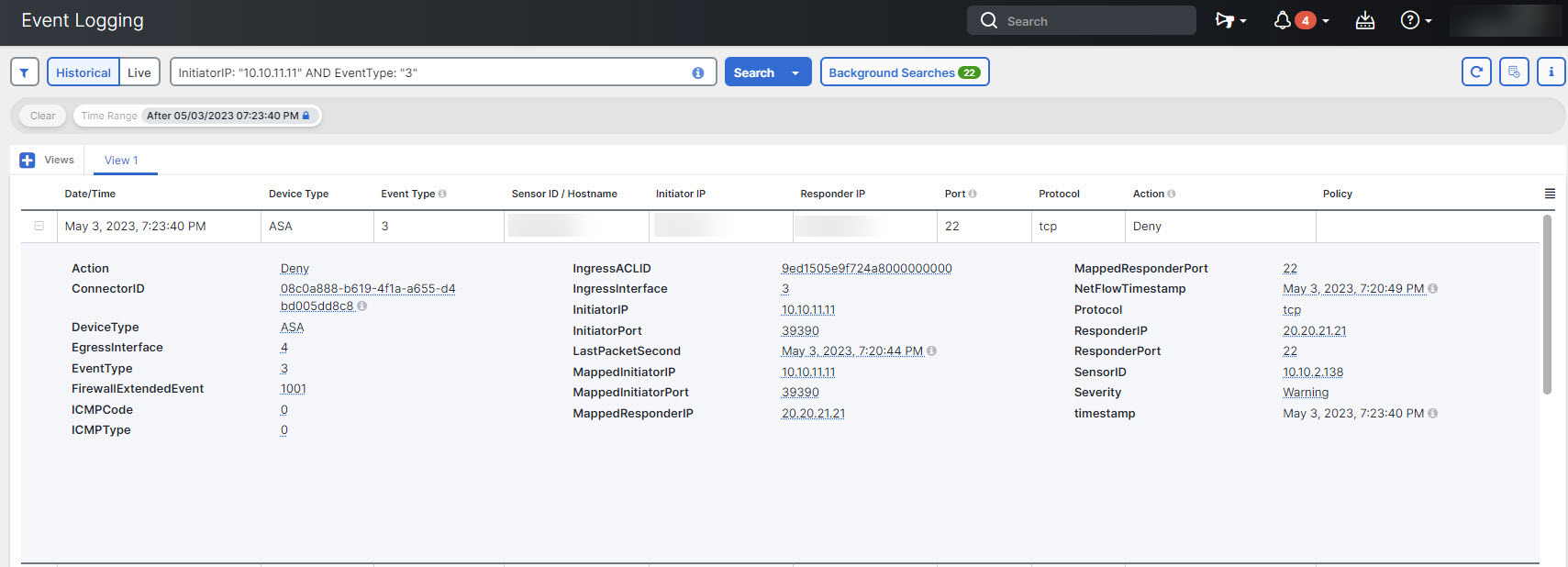
In this example, the search started by rolling over the InitiatorIP value of 10.10.11.11 AND clicking it. Initiator IP AND it's value were added to the search string. Next, Event Type, 3 was rolled-over AND clicked AND added to the search string AND an AND was added by Security Cloud Control. So the result of this search will be a list of events that were initiated from 10.10.11.11 AND that are 3 event types.
Notice the magnifying glass next to the value 3 in the example above. If you roll-over the magnifying glass, you could also choose an AND, OR, AND NOT, OR NOT operator to go with the value you want to add to the search.
In the example below, "OR" is chosen. The result of this search will be a list of events that were initiated from 10.10.11.11 OR are a 106023 event type. Note that if the search field is empty AND you right click a value from the table, only NOT is available as there is no other value.
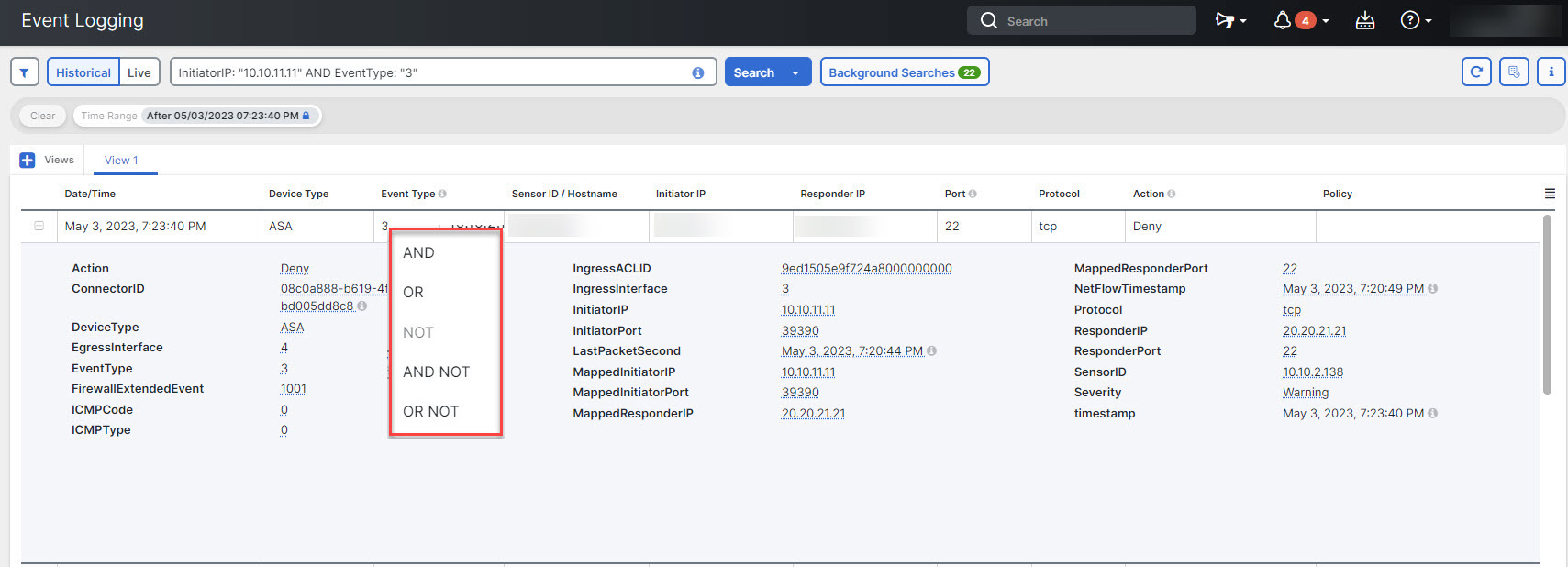
As long as you rollover a value AND it is highlighted blue, you can add that value to the search string.
AND, OR, NOT, AND NOT, OR NOT filter operators behavior:
-
AND: Use the AND operator in the filter string, to find events that include all attributes. The AND operator cannot begin a search string.
-
OR: Use the OR operator in the filter string, to find events that include any of the attributes. The OR operator cannot begin a search string.
-
NOT: Use this only at the beginning of a search string to exclude events with certain attributes.
-
AND NOT: Use the AND NOT operator in the filter string to exclude events that contain certain attributes. AND NOT cannot be used at the beginning of a search string.
-
OR NOT: Use the OR NOT operator to include search results that exclude certain elements. The OR NOT operator cannot be used at the beginning of a search string.
Filter operator examples
AND example:
For example, the search string below will search for events that contain the TCP protocol AND that originated from InitiatorIP address 10.10.10.43, AND that were sent from the Initiator port 59614. One would expect that with each additional AND statement, the number of events that meet the criteria would be small AND smaller.
Protocol: "tcp" AND InitiatorIP: "10.10.10.43" AND InitiatorPort: "59614"OR example:
For example, the search string below will display events in the event viewer that include events that include the TCP protocol, OR that originated from InitiatorIP address 10.10.10.43, OR that were sent from the Initiator port 59614. One would expect that with each additional OR statement, the number of events that meet the criteria would be bigger AND bigger.
Protocol: "tcp" OR InitiatorIP: "10.10.10.43" OR InitiatorPort: "59614"NOT example:
For example, this search string would exclude any event with the InitiatorIP 192.168.25.3 from the results.
NOT InitiatorIP: "192.168.25.3"AND NOT example:
For example, this filter string will display events with the InitiatorIP 192.168.25.3 but NOT those whose ResponderIP address is also 10.10.10.1.
InitiatorIP: "192.168.25.3" AND NOT ResponderIP: "10.10.10.1"You can also combine NOT AND AND NOT to exclude several attributes. For example this filter string, will exclude events with InitiatorIP 192.168.25.3 AND events with ResponderIP 10.10.10.1
NOT InitiatorIP: "192.168.25.3" AND NOT ResponderIP: "10.10.10.1"OR NOT example:
For example, this search string will find events with the Protocol of TCP, OR that have the InitiatorIP of 10.10.10.43, OR those NOT from InitiatorPort 59614.
Protocol: "tcp" OR InitiatorIP: "10.10.10.43" OR NOT InitiatorPort: "59614"You could also think of it this way: Search for (Protocol: "TCP") OR (InitiatorIP: "10.10.10.43") OR (NOT InitiatorPort: "59614").
Wildcard searches:
Use an asterisk (*) to represent a wildcard in the value field of an attribute:value search to find results within events. For example, this filter string,
URL:*feedback*will find strings in the URL attribute field of events that contain the string feedback.
Related information:
-
Event Attributes in Security Analytics AND Logging