Manage rule anomalies
This section explains how the real-time Policy Analyzer and Optimizer feature in Cloud-Delivered Firewall Management Center automatically detects anomalies when you create a new rule or edit a rule. It also describes the options available in the interface for reviewing and resolving the detected anomalies. The same behavior applies when modifying an existing rule.
When you create a new rule, the following rule configuration dialog box is displayed:
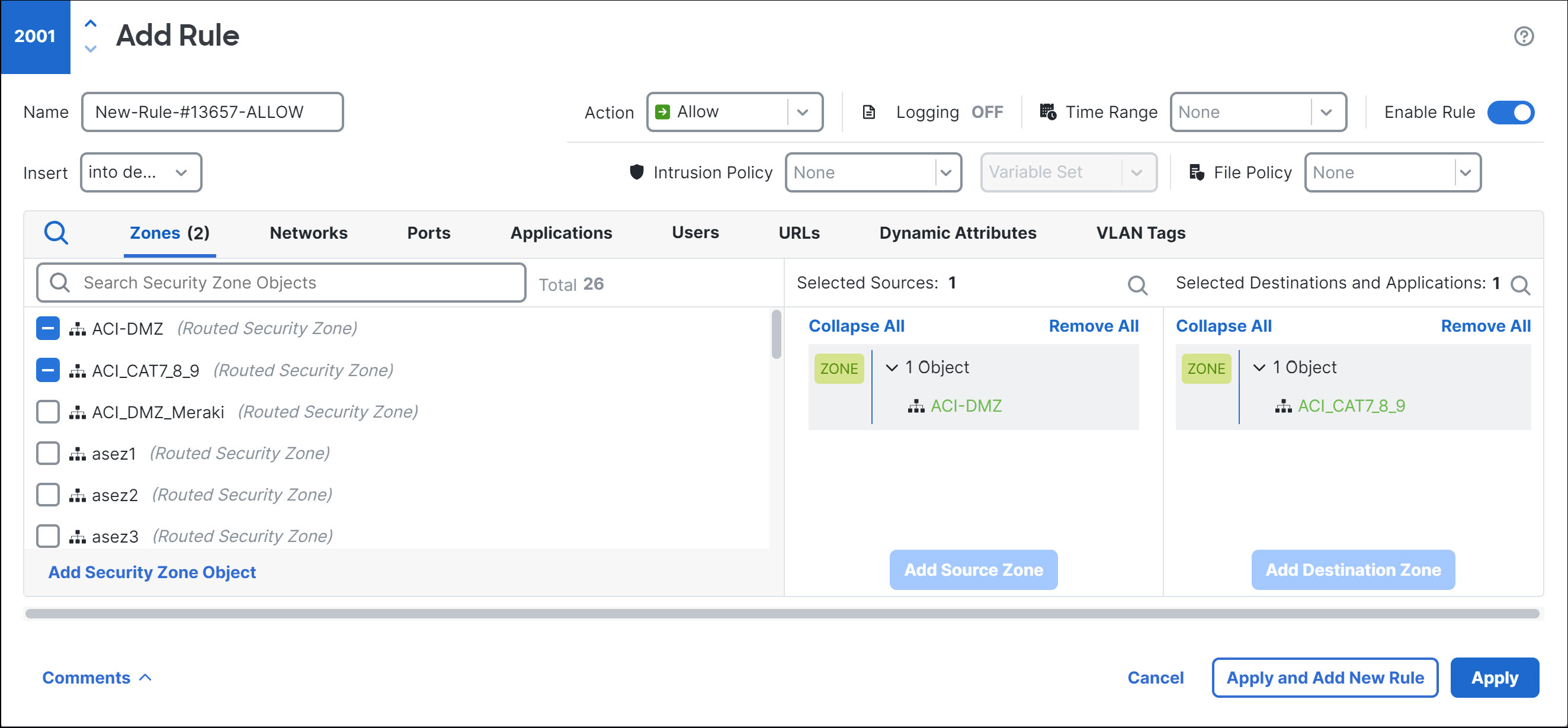
After defining the rule details and clicking Apply, the feature performs an automatic anomaly check on the new rule. If conflicts with existing rules are found, the Anomalies detected warning dialog box is displayed.
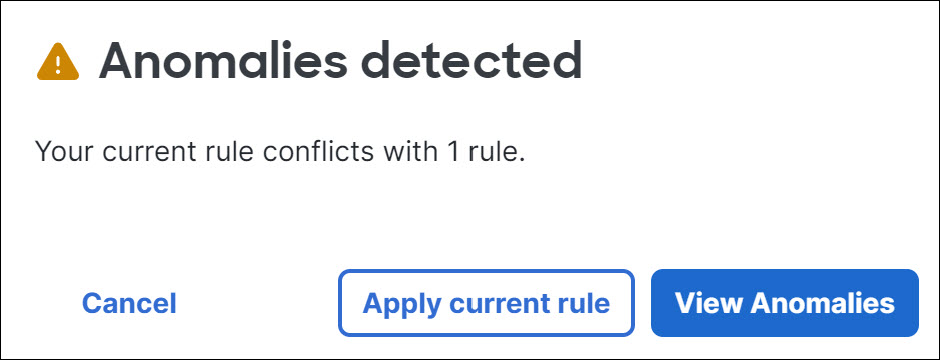
You can click one of the following options to:
-
Cancel: Returns you to the rule editing interface to update the current rule.
-
Apply Current Rule: Saves the rule despite the detected anomalies.
-
View Anomalies: Opens a dialog box to display detailed information about the conflicts detected.
On clicking View Anomalies, the Anomalies detected dialog box is displayed, showing all the anomalies that have been detected in the context of to the current rule.
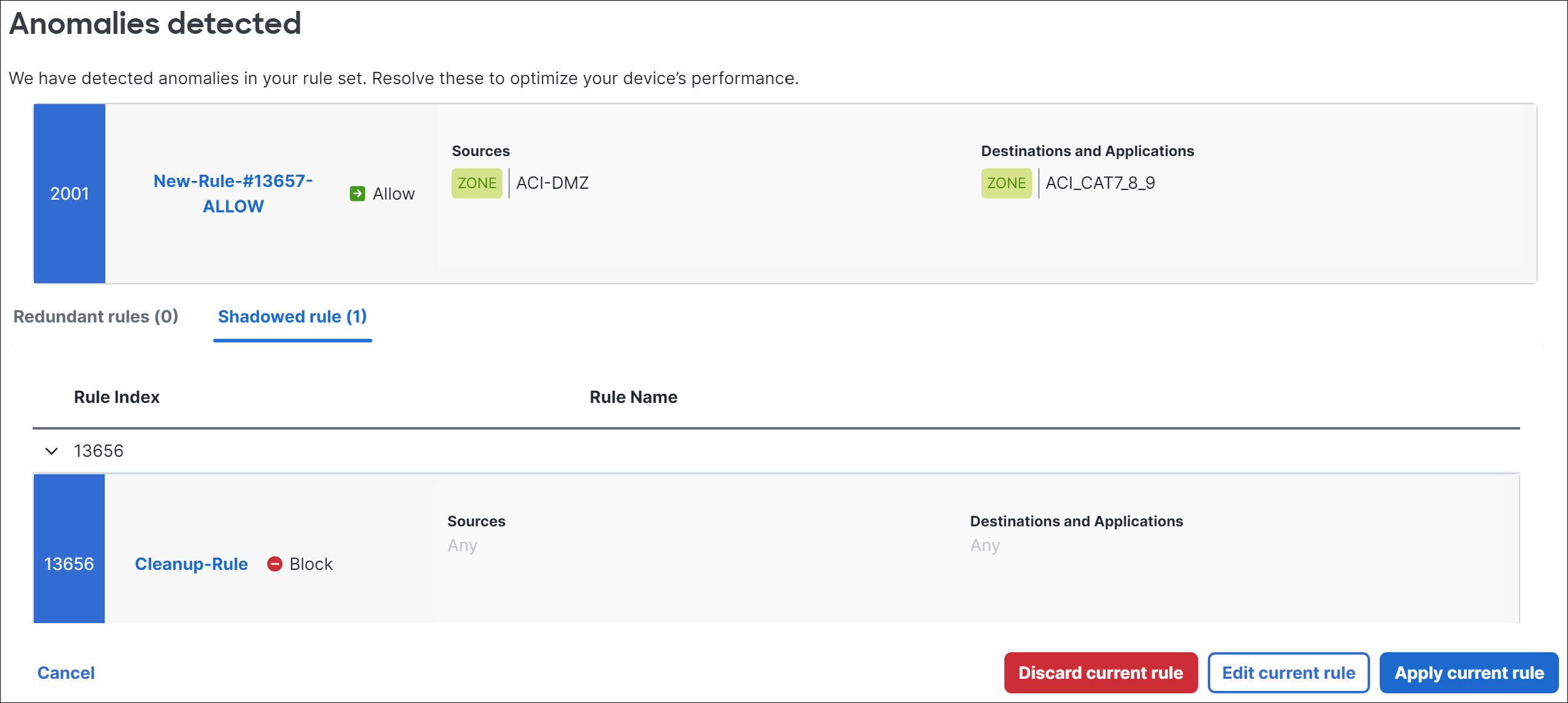
You can click one of the following options to:
-
Cancel: Closes the anomalies dialog box.
-
Discard current rule: Prompts a confirmation dialog box to discard the rule.
-
Discard current rule: The rule is discarded, and both the anomalies dialog box and the add rule dialog box are closed.
-
Cancel: The confirmation dialog box closes, returning you to the anomalies dialog box.
-
-
Edit current rule: Closes the anomalies dialog box and returns you to the add rule dialog box to modify the rule details.
-
Apply current rule: A dialog box is displayed prompting you to save the rule despite potential anomalies.
-
Proceed: The rule will be saved.
-
Cancel: The confirmation dialog box will close, returning you to the anomalies dialog box or the initial warning dialog box, depending on which is applicable.
-