Device management page enhancements
Device management page is enhanced to a new user interface that can be toggled with the legacy version. User interface improvements offer enhanced features including improved search functionality, device status monitoring, and centralized troubleshooting tools.
Device management page enhancement features
Navigation: Devices > Device Management
Enable the New device management UI toggle button to switch between the legacy and the enhanced Device Management page.

Note | The enhanced user interface is in a preliminary stage and does not include all the legacy user interface features. You can switch back to the legacy Device Management user interface by clicking the same toggle button to access the features that are not yet supported in the new user interface. |
Key enhancements in the new user interface:
-
Improved search functionality: Provides a more powerful and granular search experience. Unlike the legacy user interface, which was limited to searching by device name, host name, or IP address, you can now use multiple device-related criteria, to achieve highly refined results.
-
Device status banner: A status banner at the top of the Device Management page displays the number of devices in various states (Normal, Error, Offline). A color-coded legend dynamically reflects these statuses for at-a-glance monitoring.
-
Performance improvements: The enhanced user interface page loads faster than the legacy version. Pagination has been introduced at the bottom of the page, with each page supporting up to 1,000 devices by default.
-
Device actions and bulk operations: Details of selected devices are displayed on a side panel in a more user-friendly format. Multiple devices can be selected simultaneously enabling device bulk actions from a centralized location.
-
Centralized troubleshooting panel: Troubleshooting information has been consolidated into a single pane under Troubleshooting tools, making it easier to access diagnostic tools such as Packet Tracer and Packet Capture.
Device settings
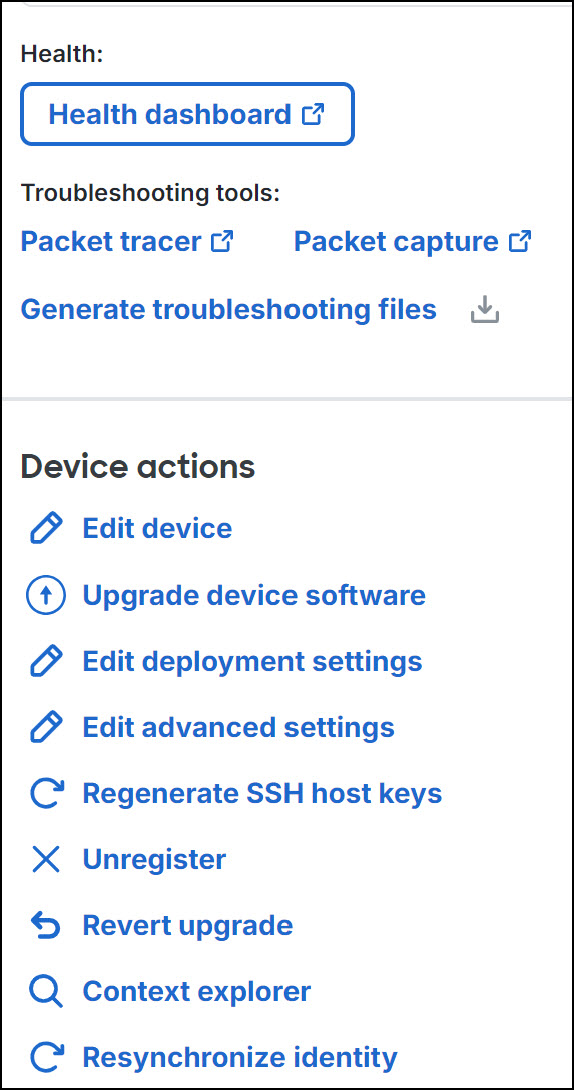
In the new device management page view, select the device to open the side pane. Click the option you want:
-
Under Health and troubleshooting, click Health dashboard to navigate to the device's health monitoring page.
-
Under Troubleshooting tools, click:
-
Packet Tracer—To navigate to the packet tracer page for examining policy configuration on the device by injecting a model packet into the system.
-
Packet Capture—To navigate to the packet capture page, where, you can view the verdicts and actions the system takes while processing a packet.
-
Generate troubleshooting files—To generate diagnostic files for the device. You can choose the type of data to be included in the report.
-
-
Under Device actions, click:
-
Edit—For each device, use the Edit (
 ) icon to edit the device settings.
 -
Upgrade device software—Install a software update on this device.
-
Edit deployment settings—Configure automatic rollback if a deployment disrupts management connectivity.
-
Edit advanced settings—Modify advanced device configuration settings.
-
Regenerate SSH host keys—Generate new SSH host keys for this device.
-
Unregister—Remove this device from the management center.
-
Revert upgrade—Restore the device to the software version and configuration from before the last upgrade.
-
Content explorer—Open Context Explorer to investigate device data.
-
Resynchronize identity—Synchronize identity data for this device.
-