Test the pxGrid Cloud identity source

This task enables you to perform diagnostics using the Security Cloud Control to determine if the identity source is working.

Errors might include communication with Cisco ISE, or with the Cisco ISE configuration with Catalyst Cloud Portal.

Procedure


Step 1

Log in to Security Cloud Control as a user with the Super Admin role.

Step 2

Step 3

Click Policies > Threat Defense > Integration > Other Integrations > Identity > Identity Sources.

Step 4

Step 5

Click Identity Services Engine (pxGrid Cloud).

Step 6

Review the configuration status information.

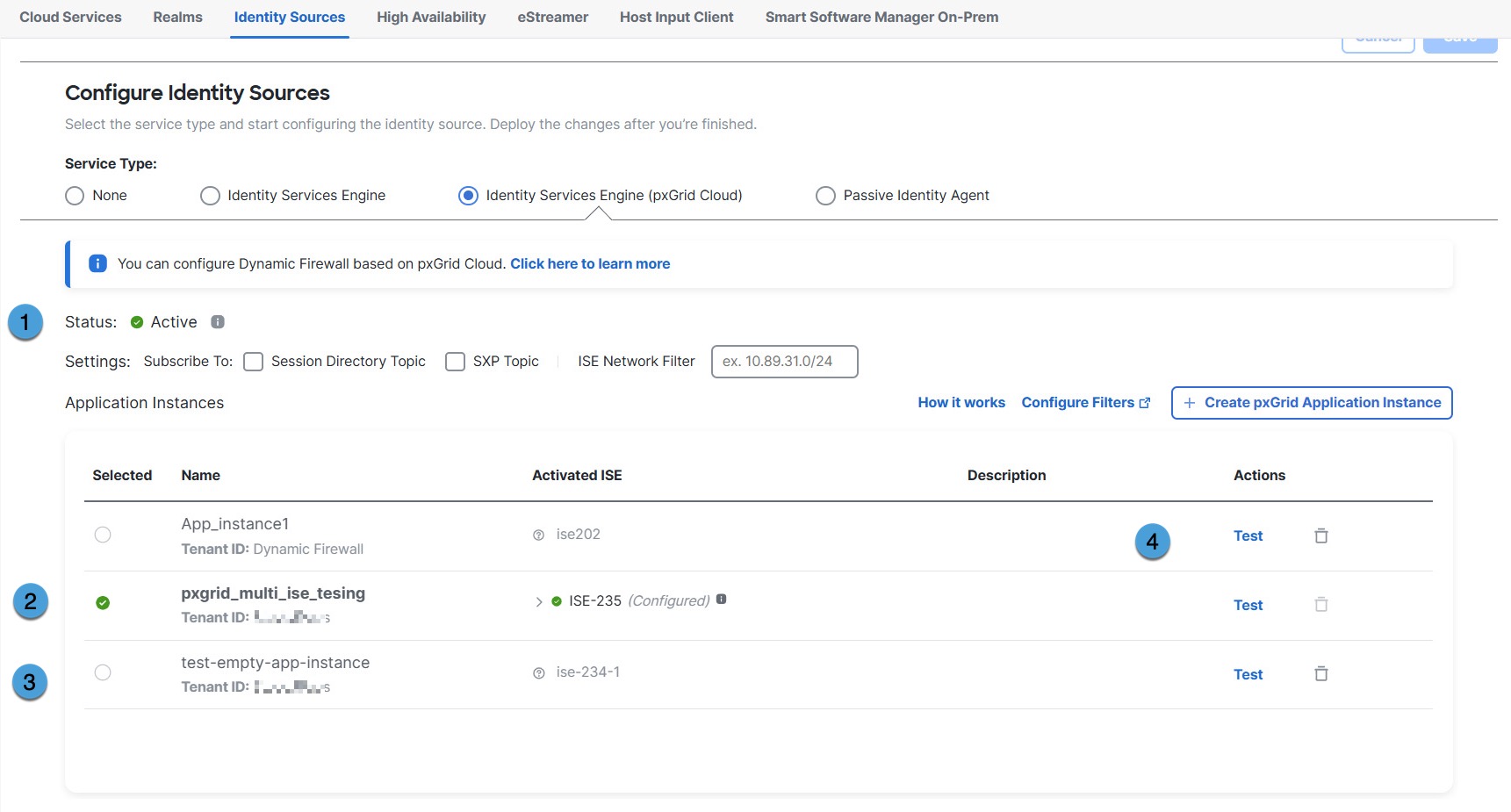
The following figure shows an example configuration.

The figure illustrates an example configuration with numbered areas that correspond to details provided in the accompanying table.

The following table has more information about the numbered areas in the figure.

Number

Meaning

1

Overall status

Any errors in the overall status of the Cisco ISE app instances are displayed. In that case, scroll to that instance and either expand the error message or click Test for more information.

2

Active

A green check mark indicates the app is active.

3

Inactive

A dimmed app instance is inactive. You can activate it by selecting the check box next to its name and then clicking Make active.

4

Test button

Click Test to perform diagnostic tests that show more detailed status of the app instance.

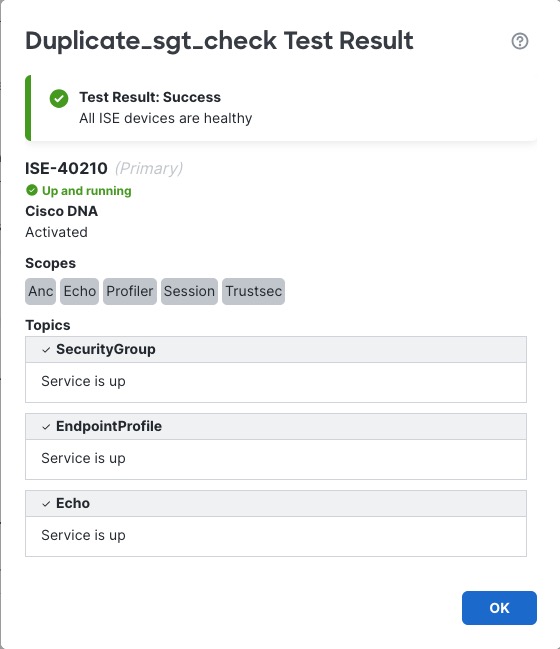
The following figure shows a sample success message.

The figure displays a sample success message from a diagnostic test performed on an app instance, indicating that the instance is functioning correctly.

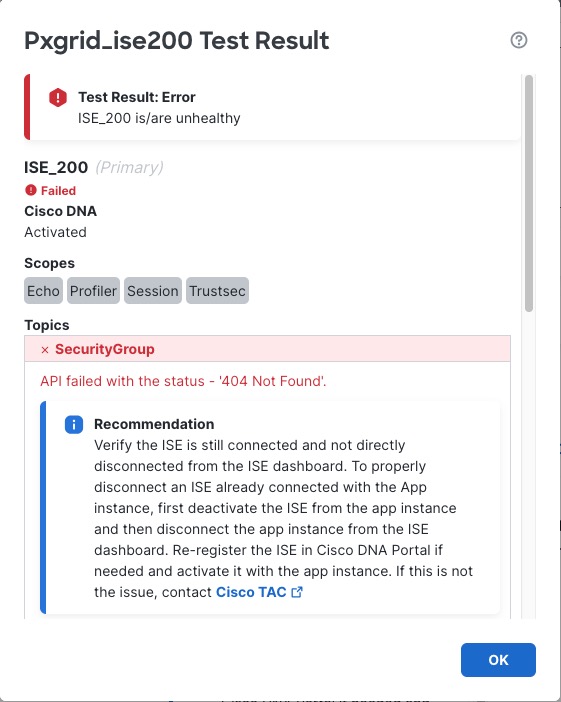
The following figure shows an example error result.

The figure displays a sample success message from the diagnostic tests performed on the app instance, indicating that the tests have completed successfully.

Step 7

Click Test to perform diagnostic tests.

If errors occur, use the following error code reference to help diagnose and solve issues with Cisco ISE, pxGrid Cloud, and the Catalyst Cloud Portal. If these suggestions do not work, or if you have a different issue, contact Cisco TAC.

Error code troubleshooting

Error Code

Troubleshooting Steps

403 – Forbidden

Verify the Cisco ISE product is not in a Pending or Suspended state in the Catalyst Cloud Portal. If suspended, verify that Cisco ISE is registered as discussed in Enable pxGrid Cloud service in Cisco ISE and register your device. Additionally, verify pxGrid Cloud services are publicly available.

404 – Not Found

Verify the Cisco ISE server is not directly disconnected from the Cisco ISE dashboard. To properly disconnect Cisco ISE already connected with the app instance, first deactivate Cisco ISE from the app instance and then disconnect the app instance from the Cisco ISE dashboard.

408 – Request Timeout

Check whether there are any general connectivity issues with Cisco ISE and verify pxGrid Cloud connectivity status is Connected in the ISE dashboard under The image illustrates a 408 Request Timeout error message, indicating that the server did not receive a complete request from the client within the server's allotted timeout period. > Administration > pxGrid Services > Client Management > pxGrid Cloud Connection. Verify the Cisco ISE server is not directly disconnected from the Cisco ISE dashboard.

413 – Content Too Large

Review the pxGrid Cloud API limitations on GitHub. If needed, consider upgrading your Cisco ISE version to fully utilize pxGrid Cloud support.

500 – Internal Server Error

Check that the Cisco ISE server is operational and that pxGrid Cloud services are active (verify MNT, SXP, pxGrid nodes, and so on). For more information, see Monitoring and debugging in the Cisco pxGrid chapter in the Cisco Identity Services Engine Administrator Guide.

Step 8

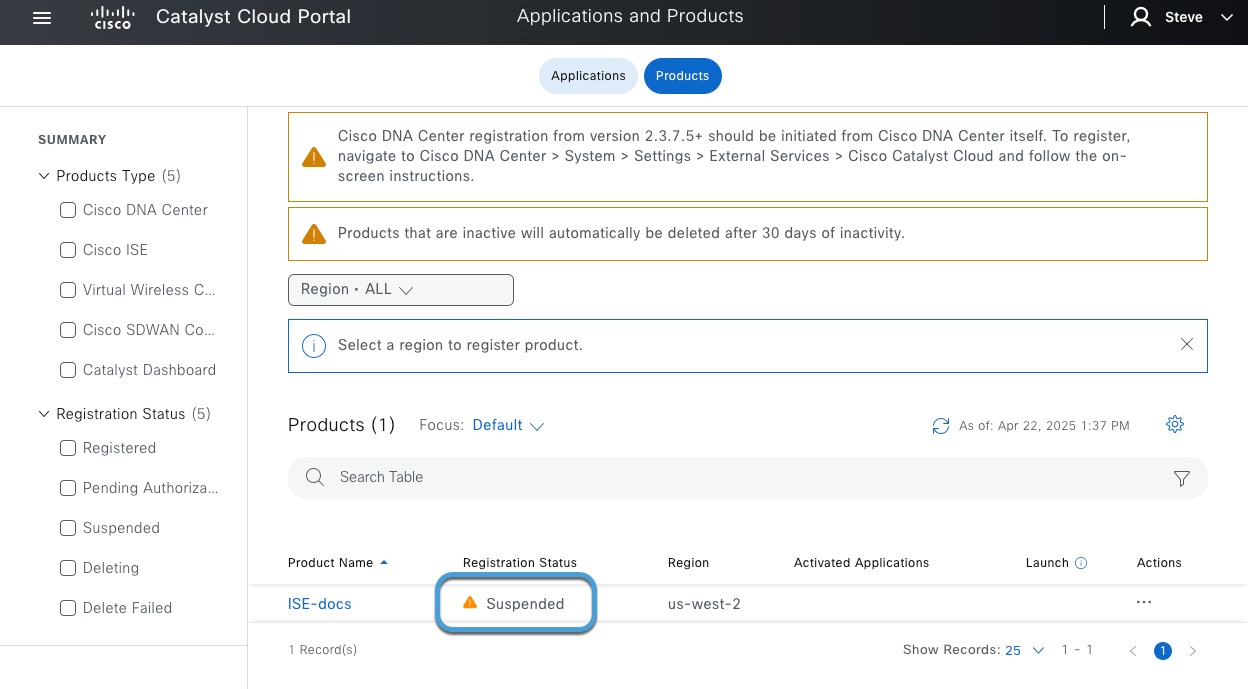
If the product is in a Pending or Suspended state, verify that it is active.

  1. Log in to the Catalyst Cloud Portal.

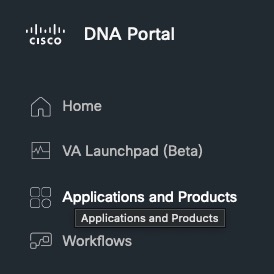
  2. In the Catalyst Cloud Portal, go to The figure illustrates an example of a suspended product within the Cisco DNA Portal, highlighting its status and relevant details. > Applications and Products.

    Example:

    In the Cisco DNA Portal, go to Applications and Products

  3. Click the Products tab.

    Example:

    The following figure shows an example of a suspended product.

    The figure illustrates a suspended product within the Cisco DNA Portal, highlighting its status and relevant details for user reference.

  4. To correct the issue, in the Actions column, click The figure illustrates a suspended product within the Cisco DNA Portal, highlighting its status and relevant details for user reference. and click Generate OTP.

  5. Use the OTP as discussed in Create the identity source.

Step 9

If you encounter a cluster member not reachable error, find what node is not reachable.

If a member of the Cisco ISE cluster is not reachable, a page like this is displayed:

The error page indicates that a member of the cluster is not reachable, providing options for troubleshooting and further actions.

To find what node is not reachable, log in to Cisco ISE primary administration node as an administrator and click click the Menu icon () and choose Administration > System > Deployment, then see Node Status in a Cisco ISE Deployment.