Replace an internal certificate (decrypt - replace cert only)
Replace expiring internal certificates in decryption policies to maintain secure encrypted traffic inspection capabilities.
This task discusses how to replace the internal certificate used in an incoming decryption rule using the Cloud-Delivered Firewall Management Center.
You can also replace the certificate using the API as discussed in Cloud-Delivered Firewall Management Center REST API Quick Start Guide.
The system indicates that an internal certificate is expiring when today's date is within 30 days of its expiration date. The following figure shows an example.

Before you begin
You must choose the Decrypt - Replace Cert decryption rule action in one of these ways:
-
In a rule-based decryption policy by clicking the action from the rule's Action list.
-
Create a standard decryption policy, which always uses the Decrypt - Replace Cert rule action.
Follow these steps to replace an internal certificate using the Decrypt - Replace Cert rule action:
Procedure
Step 1 | Log in to Security Cloud Control if you haven't already done so. |
Step 2 | Click Firewall. |
Step 3 | Click Cloud-Delivered Firewall Management Center. |
Step 4 | Locate the internal certificate that is expired or expiring (for example, an expired certificate is indicated by |
Step 5 | Click Edit ( |
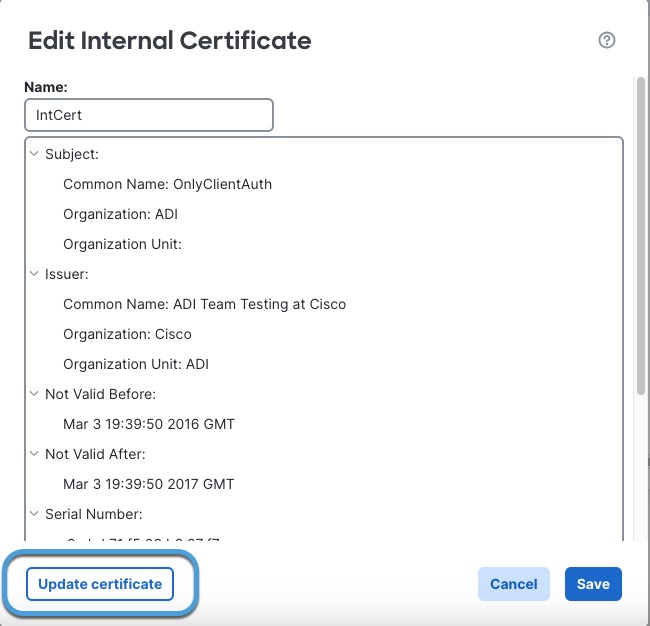
Step 6 | Click Update Certificate as this figure shows.
|
Step 7 | Enter the requested information; see Upload an internal certificate for inbound protection for more information. |
Step 8 | Follow the prompts on your screen to complete the action. |
 ).
).