Configure DNS
You need to specify a DNS server if the chassis requires resolution of hostnames to IP addresses. These chassis DNS settings are separate from the DNS settings per instance, which are configured in the device platform settings.
When you configure multiple DNS servers, the chassis uses servers in a random order. You can configure up to four servers across four DNS server groups. For example, you can configure a single server group with four servers, or you can configure four server groups with one server each.
Procedure
Step 1 | Choose and create or edit the chassis policy. |
Step 2 | Choose DNS. 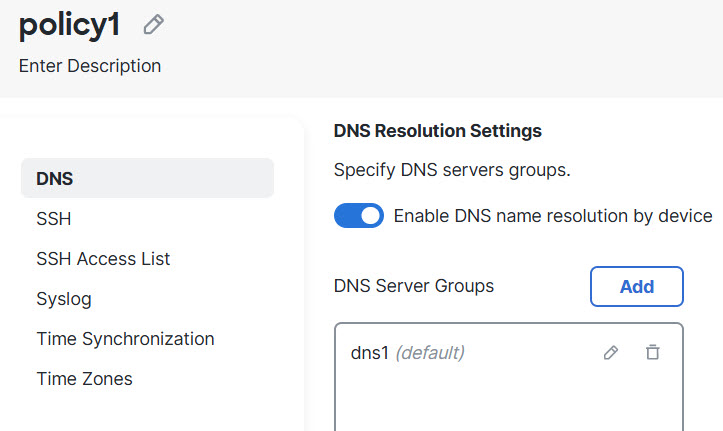
|
Step 3 | Enable the Enable DNS name resolution by device slider. |
Step 4 | Click Add to add a DNS server group. 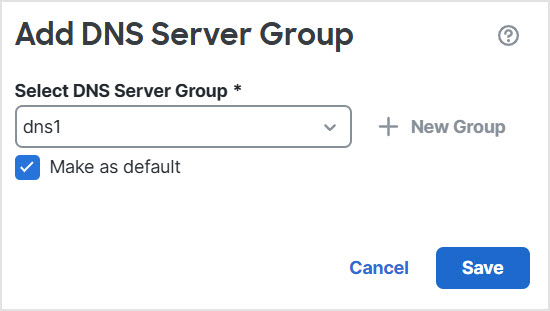
|
Step 5 | Either select an existing DNS server group (refer to Create a DNS server group object), or click ( If you add a new group, you see this dialog box. Provide a name and up to four DNS server IP addresses as comma-separated values, and click Add. 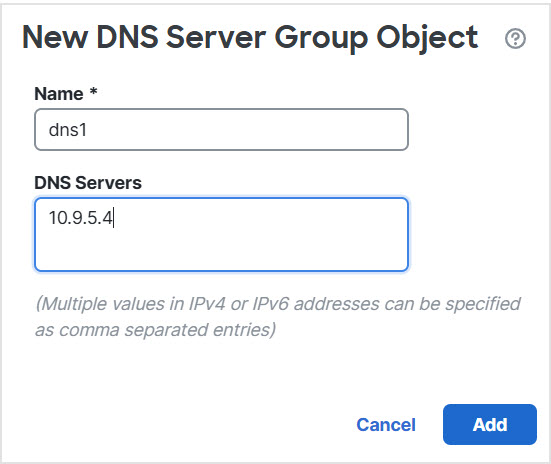
|
Step 6 | Click Save to add the DNS server to the list. |
Step 7 | Repeat these steps to add additional server groups. Make sure you only identify a maximum of four DNS servers in all groups combined. |
Step 8 | Click Save to save all policy changes. |
